> ## Documentation Index
> Fetch the complete documentation index at: https://docs.racedayready.app/llms.txt
> Use this file to discover all available pages before exploring further.
# Export a workout to Zwift
> Move a workout from RaceDayReady into Zwift
## Before you start
* You have a RaceDayReady account with a planned bike workout.
* You have a Zwift account.
* You can access the computer or device where Zwift runs.
## Workflow
Open your dashboard and select the workout you want to export to Zwift.
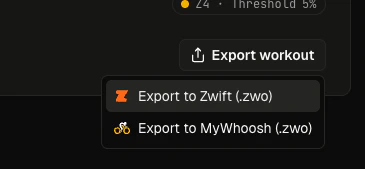
Click **Export workout** and choose **Export to Zwift**. The file will be downloaded to your device.
 Move the downloaded `.zwo` file into your Zwift custom workouts directory. On macOS, this is usually
`~/Documents/Zwift/Workouts/{some - number}/`. You can also use the Zwift app to import the file.
Open Zwift, go to **Workouts**, find your custom workout, and start riding!
## Having trouble?
See the [Zwift custom workout docs](https://support.zwift.com/en_us/custom-workouts-ryGOTVEPs#:~:text=Zwift%20from%20Xert.-,.zwo%20Files,-If%20someone%20shares) for more help.
Last updated: April 1, 2026
Move the downloaded `.zwo` file into your Zwift custom workouts directory. On macOS, this is usually
`~/Documents/Zwift/Workouts/{some - number}/`. You can also use the Zwift app to import the file.
Open Zwift, go to **Workouts**, find your custom workout, and start riding!
## Having trouble?
See the [Zwift custom workout docs](https://support.zwift.com/en_us/custom-workouts-ryGOTVEPs#:~:text=Zwift%20from%20Xert.-,.zwo%20Files,-If%20someone%20shares) for more help.
Last updated: April 1, 2026